PVM — Firmware Update & Uploading a Trigger Image -EN
This article covers two tasks in the PVM web interface: (A) updating the firmware, and (B) uploading the image the PVM shows on screen when it is triggered (motion, PIR, face, alarm input, or always).
default password: admin ou admin123.
A. Update the firmware
- Log in to the PVM's web interface.
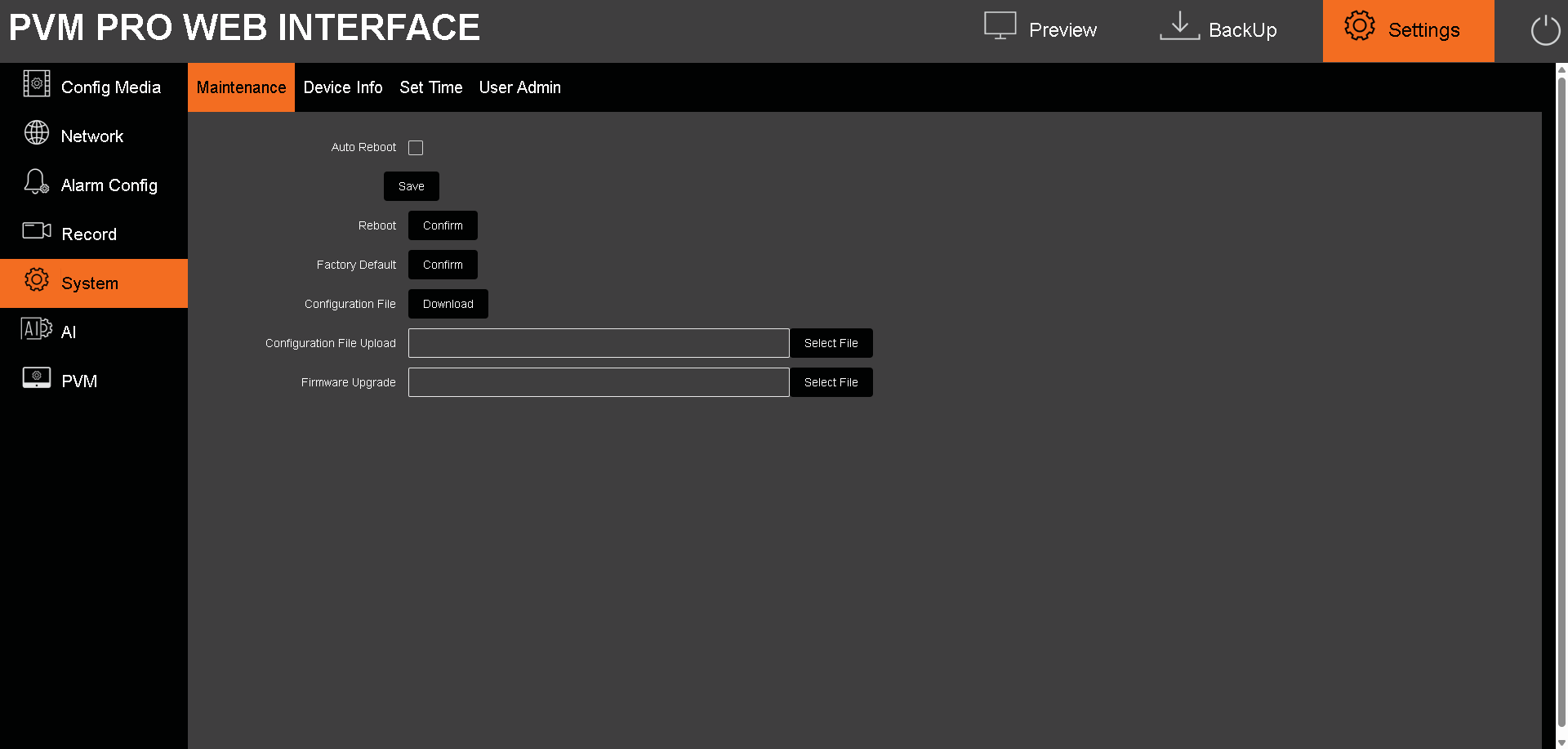
- Go to Settings → System → Maintenance.
- Find Firmware Upgrade and click Select File.
- Browse to the correct firmware file for this PVM model and select it.
- Start the upgrade and wait — the device reboots when it finishes.
- Do not power off the PVM during the upgrade.
Good practice
- Before upgrading, on the same Maintenance page use Configuration File → Download to save a backup of your settings.
- Confirm the result afterward under Settings → System → Device Info (shows model and firmware version).
- Use only the firmware for your exact model — a mismatched file will fail or not apply.
B. Upload the image shown when triggered (Deterrence Message)
The PVM can pop a in-screen image (and an optional welcome voice) when it is triggered. This is the Deterrence Message feature.
- Go to Settings → PVM → Image (in some firmware this page is labelled Message / Deterrence Message).
- Click Select File and browse to the image on your computer.
Choose when the image is shown by enabling a trigger source:
- PIR — the PIR (motion) sensor triggers the image.
- Face detection — a detected face triggers the image.
- Motion detection — a motion-detection event triggers the image.
- Alarm input — an external alarm-input signal triggers the image.
- Always — the image is displayed continuously (no trigger).
- Click Save.
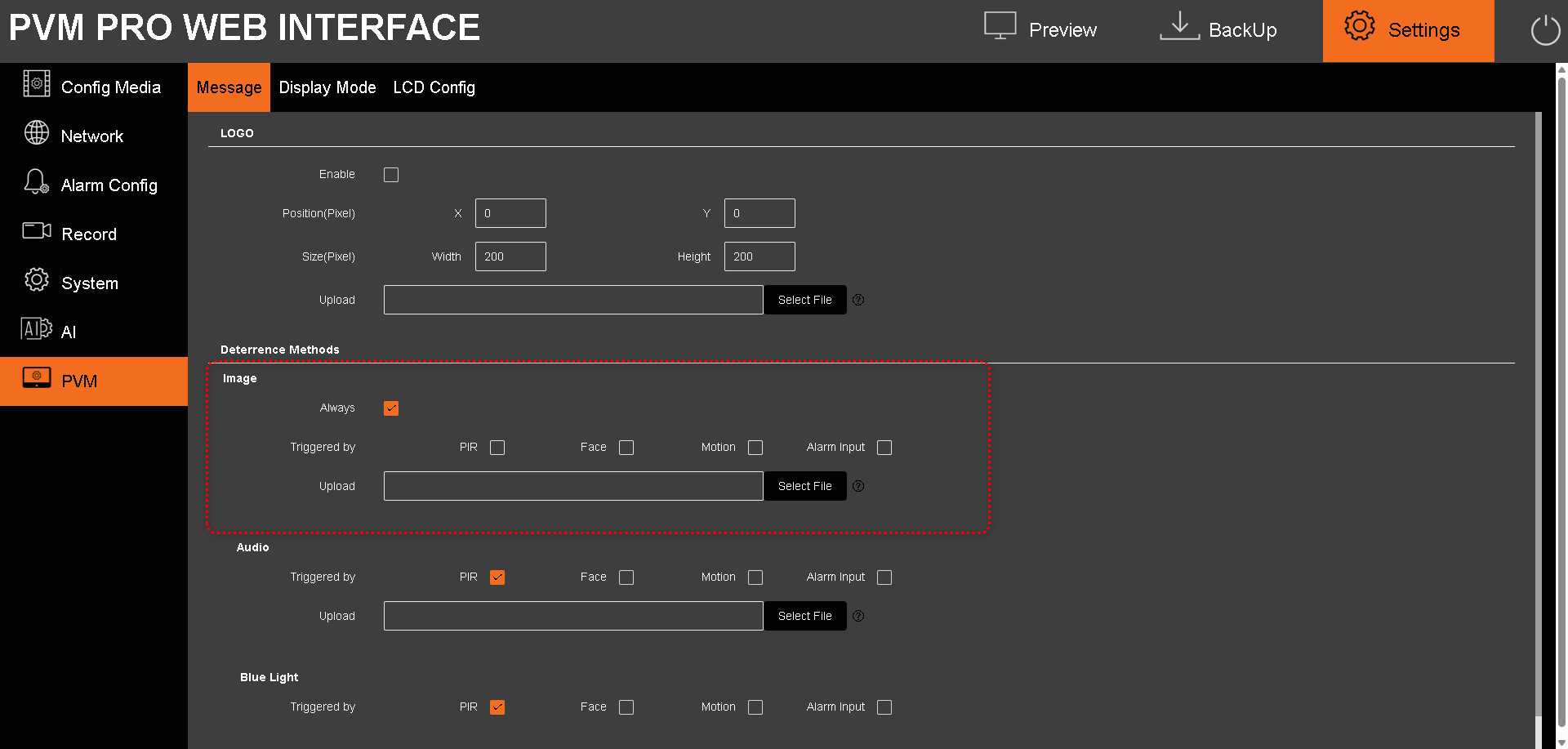
Image requirements
- Dimensions: 800 × 455 or 800 × 1280 pixels.
- File size: under 1 MB.
- Use a standard image format (e.g. JPG/PNG). If the file is larger than 1 MB or a different size, resize/compress it before uploading, or it may be rejected or display incorrectly.
How it behaves: when the selected trigger fires, the uploaded image appears on the PVM screen for the configured time, then the PVM returns to its normal display (live surveillance or advertisement).
Troubleshooting
| Symptom | Check |
| Firmware upgrade fails / won't apply | Wrong file for the model — re-download the exact firmware for this PVM; don't power off mid-upgrade. |
| Image rejected or won't upload | File over 1 MB or wrong dimensions — resize to 800 × 455 or 800 × 1280 and keep it under 1 MB. |
| Image doesn't appear on trigger | Confirm the correct trigger source (PIR / Face / Motion / Alarm input) is enabled and you clicked Save; verify that source is actually detecting. |
| Image shows but not the sensor I expected | More than one trigger may be enabled — enable only the source you want. |
Need help? GSD Support · +1-866-791-7020 (option 5, or ext. 2055) · help@gsdgroupinc.com ·