Enabling SIP Calls on the KVS-DBA20IP8MP-POE-R - EN
How it works
The KVS doorbell has a built-in SIP intercom. It can place and receive audio and video calls in one of two ways:
- Peer-to-Peer (P2P) — a direct call between two devices by IP address, with no server in the middle.
- SIP server — calls are routed through a SIP server (IP-PBX), so the doorbell can ring softphones, desk phones, or apps registered to that server.
When SIP is enabled, the doorbell can call out to a recipient (e.g. ring the front-desk phone when someone presses the button) and, if incoming calls are allowed, a SIP phone can call the doorbell. Video is supported when the other SIP client supports it (the video call is forced to H.264 for compatibility).
Requirement — read first: SIP is a standard protocol, but both ends must speak it. To use this feature, the devices talking to the doorbell must support the SIP protocol (a SIP softphone, desk phone, or another SIP intercom), or you must run a SIP server (IP-PBX) — for example Mizu VoIP (https://www.mizu-voip.com/) or similar (Asterisk, FreePBX, 3CX, etc.). Peer-to-Peer needs no server, but the two endpoints must both support SIP and be able to reach each other on the network.
All settings are in the doorbell's web interface under Settings → Access System → Intercom.
Peer-to-Peer vs. SIP server — which to use
| Peer-to-Peer (P2P) | SIP server (IP-PBX) | |
| Infrastructure | None — direct device-to-device | Requires a SIP server (e.g. Mizu VoIP, Asterisk, 3CX) |
| Addressing | By the recipient's IP address | By a SIP account / extension registered on the server |
| Best for | 1-to-1 setups, a single door → one monitor/phone/speaker on the same LAN | Multiple phones/apps, ringing groups, off-site or multi-site, call routing |
| Reach | Same reachable network (or a routed/VPN path) | Anywhere the phones can register to the server |
| Setup effort | Minimal | More (server account + registration) |
| Security | Local only | Use TLS transport to encrypt signaling |
Rule of thumb: one door → one answering point on the same network → P2P. Multiple answering points, remote answering, or call routing → SIP server.
Step 1 — Enable SIP (Call Configuration)
Settings → Access System → Intercom → Call Configuration
- Enable SIP — turns on outgoing SIP calls.
- Allow incoming SIP calls — lets a SIP phone call the doorbell.
- Auto Answer — the doorbell answers incoming SIP calls automatically.
- Call Timeout — how long it rings before an unanswered call ends (10–180 s; default 60 s).
- SIP Port — the SIP signaling port.
- RTP Start Port — the starting port for the RTP media stream.
- Status Light — indicator behaviour (auto / on / off).
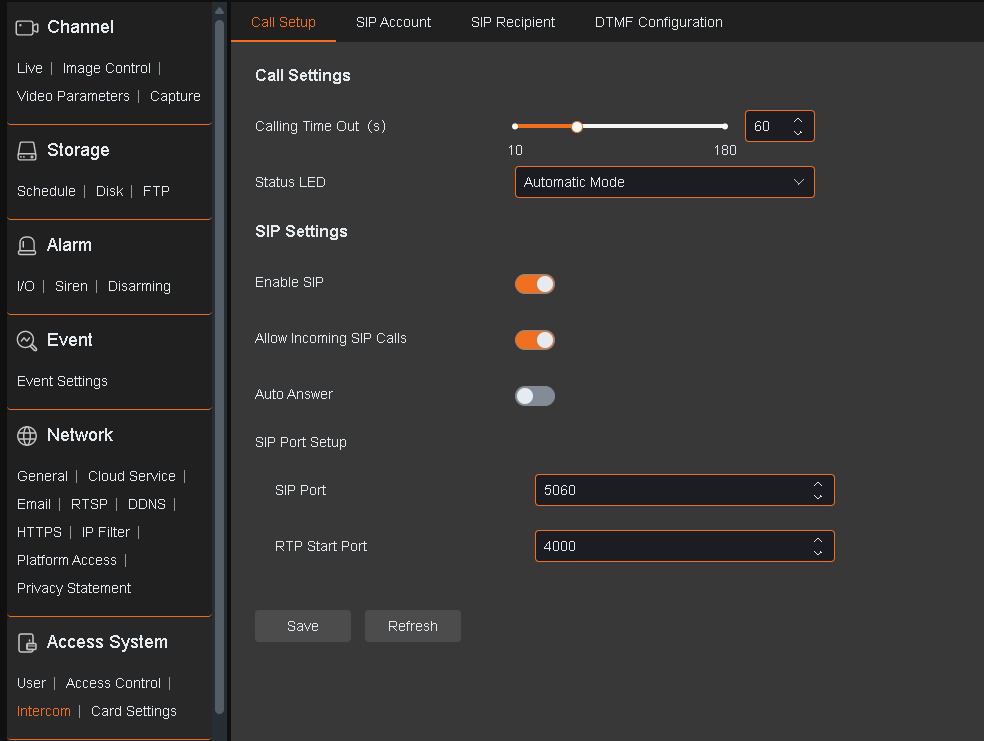
Click Save / Apply.
Step 2 — Set the SIP account
Settings → Access System → Intercom → SIP Account
By default the doorbell uses a Peer-to-Peer account (only its Name is editable) — this is all you need for P2P calling.
To use a server, click Add and create a SIP Server account (up to 7 accounts, but only one active at a time):
- Account Type — SIP Server
- Name — a label for the account
- Server IP — the SIP server's address
- Port — the SIP server's port
- Password — the account password
- Caller ID — the caller identity presented for this account
- Transport Mode — UDP, TCP, or TLS (use TLS when the server supports it, to encrypt signaling)
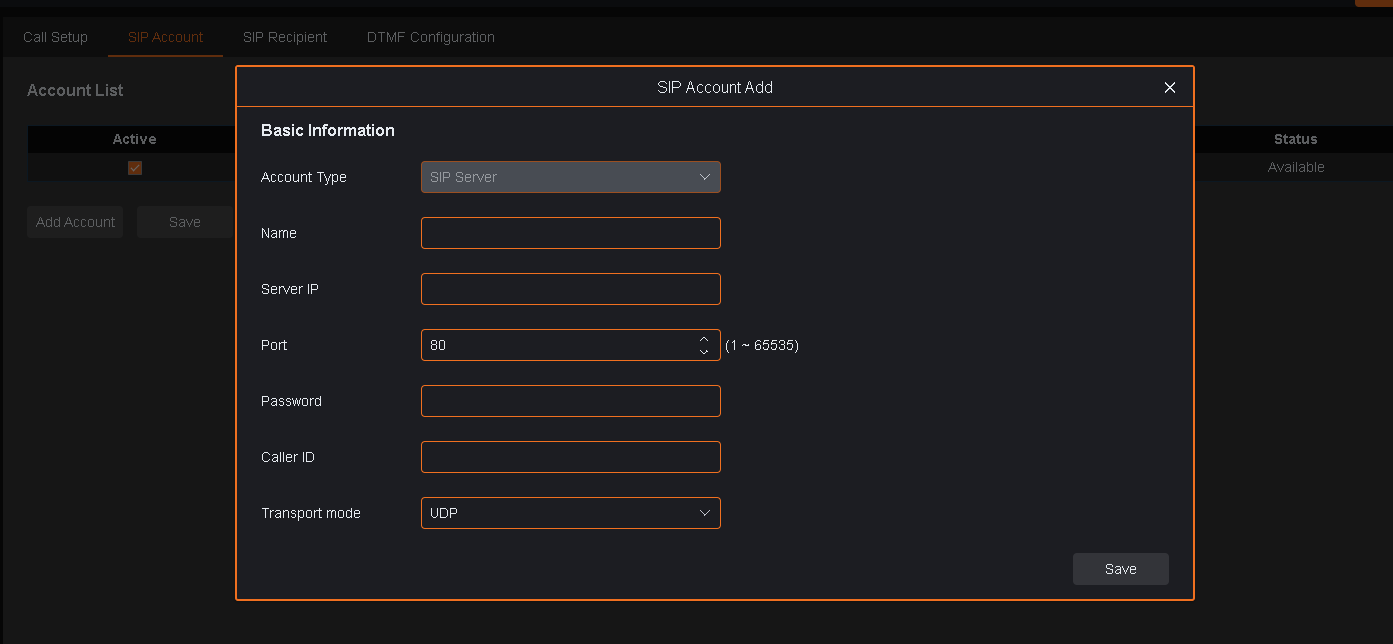
Step 3 — Add the SIP recipient (who the doorbell calls)
Settings → Access System → Intercom → SIP Recipient
This is the contact list the doorbell dials (up to 16 recipients). Add the type that matches your setup:
- Peer-to-Peer recipient: set Type = Peer-to-Peer, a Name, and the Recipient IP (the answering device's IP address).
- SIP Server recipient: set Type = SIP Server, a Name, and the Caller ID (the extension/account to ring on the server).
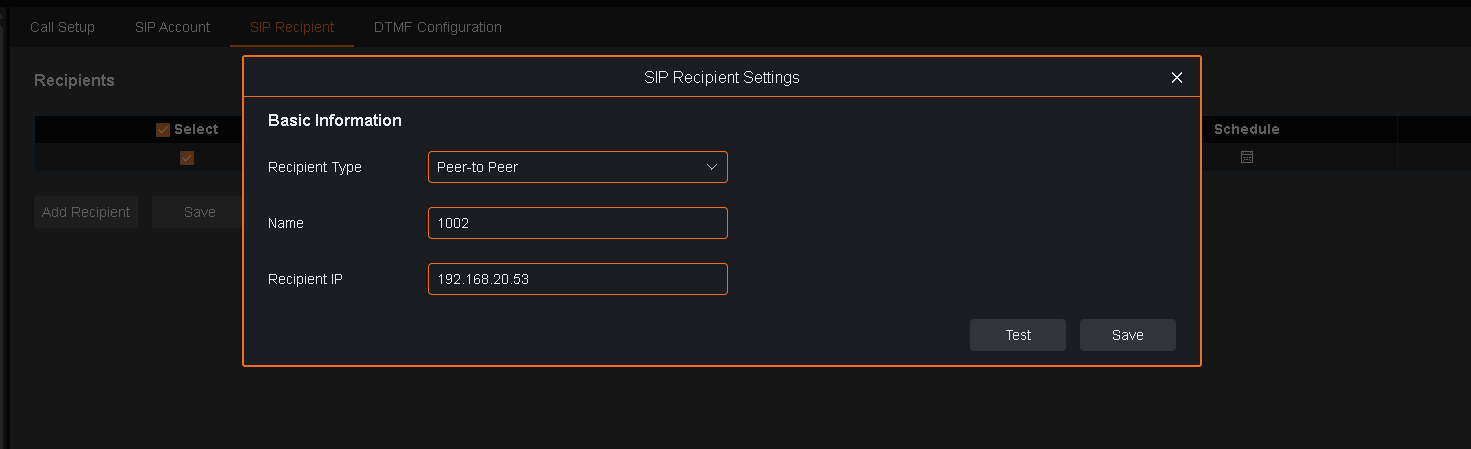
Step 4 (optional) — Open the door from the call (DTMF)
Settings → Access System → Intercom → DTMF Configuration
DTMF rules let the person on the call open or close the door from the phone keypad during a SIP call: enter the rule's keypad code followed by #. Up to 16 rules; each needs a unique code.
- Enable, Name, Control Action (open/close), Keypad Code.

⚠️ Security: a DTMF rule can unlock the door remotely. Restrict who can call the doorbell and keep the keypad codes confidential.
Verify & troubleshoot
| Symptom | Check |
| Doorbell won't place a call | Enable SIP is on; a recipient is added; for P2P the recipient IP is reachable. |
| SIP phone can't call the doorbell | Allow incoming SIP calls is on; SIP port is open/forwarded if across networks. |
| Registered but no call routes | Confirm the SIP Server account is the active one (only one can be active) and credentials/Caller ID match the server. |
| Audio works but no video | The other SIP client must support video; the call uses H.264. |
| Calls drop after ~1 min | That's the Call Timeout (default 60 s) for unanswered calls — raise it if needed. |
| Signaling not encrypted | Set Transport Mode = TLS (server must support it). |
Need help? GSD Support · +1-866-791-7020 (option 5, or ext. 2055) · help@gsdgroupinc.com ·